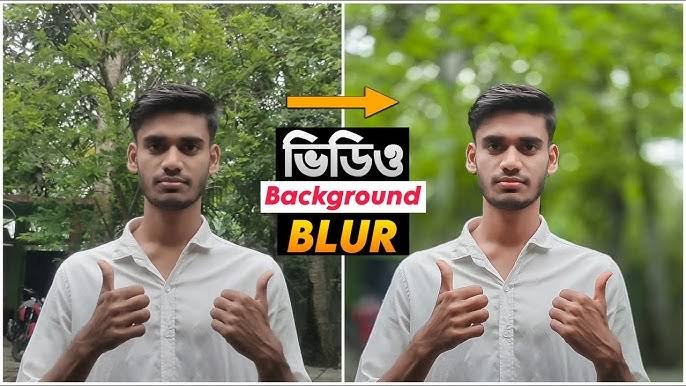

In today’s content-driven world, where high-quality visuals play a key role in grabbing attention, having a professional look in your videos can make all the difference. One of the most admired effects found in professional cameras like DSLRs is the blurred background—commonly referred to as bokeh. This effect keeps the subject in sharp focus while the background is artistically softened, creating a cinematic appearance.
But what if you don’t own a DSLR? Can you still achieve that stunning blur in your videos? The good news is—yes, you can. Thanks to powerful video editing apps and tools, even smartphone users can replicate the DSLR-like video background blur with ease.
Let’s dive into the world of background blur for videos and learn how you can make your content look more polished and professional without needing expensive equipment.
What is the Way to Blur a Video Background Like a DSLR?
Blurring a video background like a DSLR involves using depth-of-field simulation to focus on the subject while softening everything in the background. In traditional DSLR cameras, this is achieved using wide-aperture lenses (like f/1.8 or f/2.8). However, with the evolution of software tools and AI, you can now create this blur effect digitally—during or after recording.
There are three main ways to blur video backgrounds like a DSLR:
Using Smartphones with Portrait Video Mode (like iPhones and select Android phones).
Using video editing apps with AI background blur tools (such as CapCut, VN Video Editor, Alight Motion).
Using professional desktop software (like Adobe Premiere Pro or Final Cut Pro with masking and keyframing).
Each method varies in complexity, features, and result quality—but all can help you achieve DSLR-style blur without the camera.
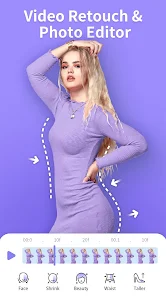
How to Blur Video Background Like DSLR
Here is a simple step-by-step method using popular tools:
1. Blur During Recording (if supported)
Many smartphones now have a “portrait video” or “cinematic mode” which allows background blur in real-time.
iPhone Users: Use Cinematic Mode (available on iPhone 13 and above). It allows you to record with depth effect and even adjust the focus after recording.
Samsung Users: Use Portrait Video mode found in the camera app. It offers different blur styles.
2. Blur Using Apps After Recording
If your phone doesn’t support blur during recording, you can still add the effect afterward. Here’s how:
Using CapCut:
Open CapCut and import your video.
Tap on the video layer and select “Remove Background” (AI tool).
Add a blur layer underneath or apply blur effect to the background layer.
Adjust blur intensity for a DSLR-like finish.
Using VN Video Editor:
Import video in VN Editor.
Use Chroma Key or Masking to isolate the subject.
Add background blur using the blur filter or Gaussian blur.
Using Alight Motion:
Import your video.
Use the “Subject Detection” or “Luma Key” tool.
Apply blur effect only to the background using layers.
Pro Tip: Use a green screen while shooting to make background removal easier and blur application more accurate.
Features of How to Blur Video Background Like DSLR [Completely Detailing]
Here are the standout features of blurring your video background using modern tools:
| Feature | Details |
|---|---|
| AI-Powered Subject Detection | Automatically detects and isolates subjects in the frame. |
| Adjustable Blur Intensity | Choose the amount of blur to replicate DSLR-like background softness. |
| Real-Time Blur Application | On phones like iPhone 13+ or Galaxy S22+, blur can be applied while filming. |
| Multi-layer Editing | Separate subject from background using layers and add custom effects. |
| Post-Focus Adjustment | Change focus point after recording (available in cinematic mode of iPhones). |
| Portrait-Style Presets | One-click presets for cinematic, creamy, or aesthetic background blur. |
| Green Screen Support | Makes blurring accurate when subject is recorded on a solid color background. |
| Manual Masking Options | For precise editing control when AI does not detect correctly. |
These features make video background blurring both flexible and accessible to everyone, whether you’re a beginner or an advanced editor.
Pros of How to Blur Video Background Like DSLR
| Pros | Details |
|---|---|
| Professional Visual Appeal | Makes your videos look cinematic and polished. |
| No Expensive Gear Needed | Achievable with free or low-cost apps. |
| Focus on Subject | Enhances subject visibility and storytelling. |
| Improved Viewer Engagement | Blurred backgrounds reduce distractions. |
| Great for All Content Types | Ideal for vlogs, tutorials, reels, marketing videos, and interviews. |
Cons of How to Blur Video Background Like DSLR
| Cons | Details |
|---|---|
| Can Be Processing Intensive | May slow down editing apps or phones with lower specs. |
| Not Always Accurate | AI-based blur might misinterpret objects, especially with complex backgrounds. |
| Requires Learning Curve | For apps like Alight Motion or Premiere Pro, there’s a bit of a learning process. |
| Battery and Storage Usage | High-quality processing drains battery and takes more storage. |
| Blur Might Look Artificial | If not done carefully, blur may look fake or poorly masked. |
How to Blur Video Background Like DSLR Alternatives [Use Table]
If you want other options, here are some alternatives to achieve similar background blur effects:
| Tool / App | Platform | Blur Capability | Pricing |
|---|---|---|---|
| InShot | Android/iOS | Blur filter + manual edit | Free / Pro Plan |
| KineMaster | Android/iOS | Layer mask + blur effects | Free / Pro Plan |
| Adobe Premiere Rush | PC/Mobile | Depth blur tools | Free / Premium |
| Final Cut Pro | macOS | Pro-level background blur | Paid |
| Filmora | PC/Mac | AI Portrait + Blur | Free Trial / Paid |
| YouCut | Android | Simple blur background | Free |
| VITA | Android/iOS | Effects with depth blur | Free |
How to Blur Video Background Like DSLR
To wrap it all up, blurring your video background like a DSLR is no longer a dream limited to professional videographers. With the latest advancements in mobile camera technology and smart editing tools, anyone can add depth and cinematic quality to their videos—right from a smartphone or basic laptop.
Whether you’re a social media content creator, a small business owner making product videos, or just someone who loves videography, this technique helps you elevate your content without investing in costly equipment.