
Introduction
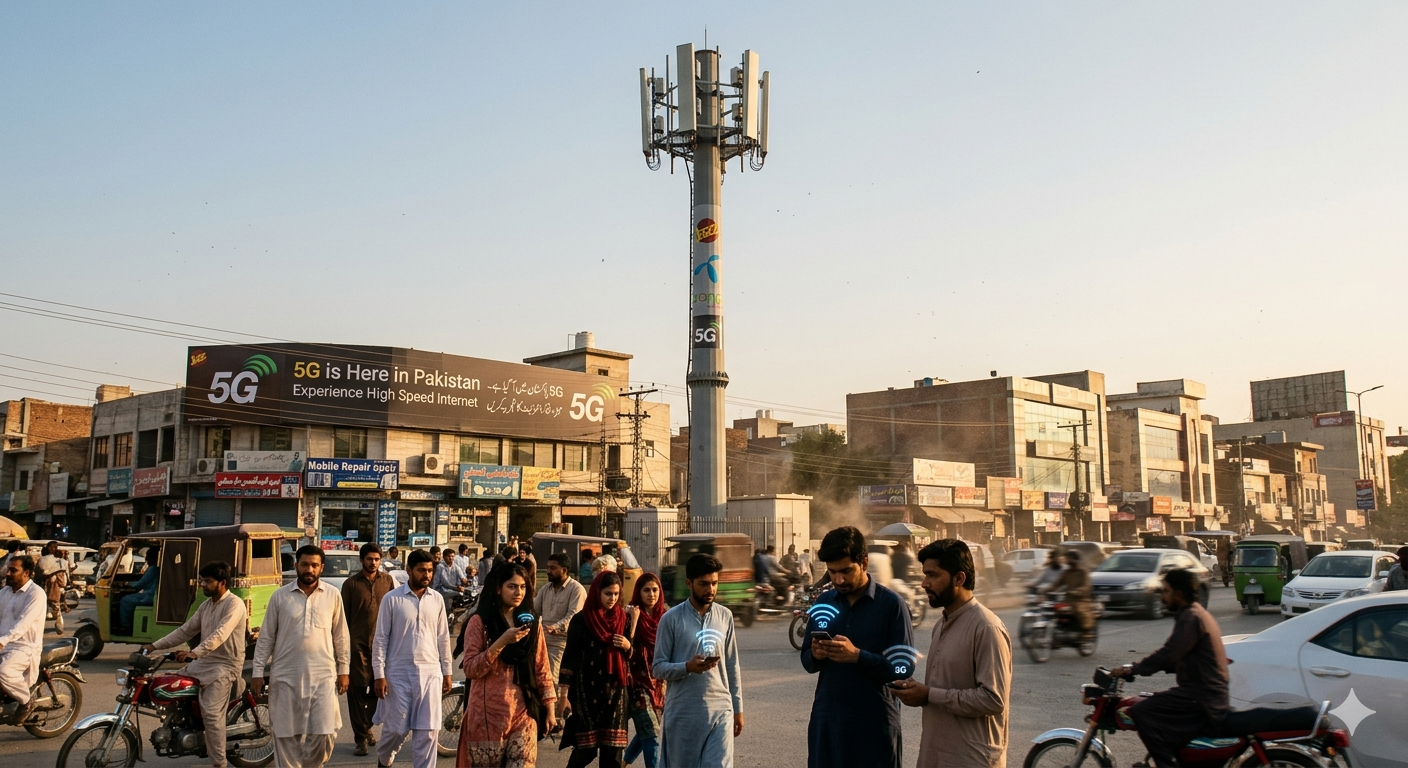
You’ve probably seen the buzz around 5G—faster speeds, lower latency, and a smoother online experience. But here’s the big question: does your phone actually support 5G? 🤔
Many people assume they’re ready for 5G just because they bought a “recent” smartphone, but that’s not always the case. The good news? Checking whether your mobile supports 5G is quick and easy. In this guide, I’ll walk you through simple methods anyone can use—no tech expertise required.
What Does 5G Support Mean?
Before diving into the steps, let’s quickly clarify what “5G support” actually means.
A phone that supports 5G has:
- A 5G-compatible modem built into the hardware
- Software that supports 5G network bands
- Compatibility with your carrier’s 5G network
Even if your phone is new, it might only support 4G LTE—so it’s worth checking.
Method 1: Check Your Phone Settings
For Android Users
- Open Settings
- Go to Connections or Network & Internet
- Tap Mobile Network
- Look for Network Mode or Preferred Network Type
If you see options like:
- 5G/4G/3G/2G (Auto)
- 5G Preferred
👉 Congrats—your phone supports 5G.
If 5G isn’t listed, your device likely doesn’t support it.
For iPhone Users
- Open Settings
- Tap Cellular
- Select Cellular Data Options
- Tap Voice & Data
If you see:
- 5G On
- 5G Auto
Then your iPhone supports 5G.
Method 2: Check Your Phone Model Online
If you’re unsure from settings, the safest method is to check your phone’s specifications.
Steps:
- Find your phone model (Settings → About Phone)
- Search on Google:
“[Your phone model] specs” - Look for Network or Connectivity section
Example:
If your phone lists:
- 5G bands supported
Then you’re good to go.
Method 3: Look at the Box or Official Website
If you still have your phone’s original box, check the specifications printed on it. Most brands clearly mention “5G” if supported.
Alternatively, visit the manufacturer’s official website and search for your model. This gives the most accurate information.
Method 4: Use the Status Bar Indicator
This is the easiest real-world check.
When you’re in a 5G coverage area:
- Look at the top of your screen
- If you see “5G” or “5G+”, your phone supports it
⚠️ Important:
If you don’t see 5G, it doesn’t always mean your phone doesn’t support it—it could be:
- No 5G coverage in your area
- 5G not enabled in settings
- Your SIM or carrier plan doesn’t support 5G
Common Mistakes to Avoid
1. Assuming All New Phones Have 5G
Not true. Many budget phones still only support 4G.
2. Ignoring Carrier Compatibility
Even with a 5G phone, your network provider must support 5G in your area.
3. Not Updating Software
Sometimes, 5G settings only appear after a system update.
👉 Tip: Always keep your phone updated to the latest version.
Bonus Tip: Check Your SIM Card
Some older SIM cards may not support 5G.
- Contact your carrier to confirm
- Upgrade to a 5G SIM if needed
Why It Matters
Knowing whether your mobile supports 5G helps you:
- Avoid unnecessary phone upgrades
- Choose the right data plan
- Get the best possible internet speed
With 5G rolling out rapidly, having a compatible device ensures you’re ready for faster downloads, smoother streaming, and better gaming performance.
Conclusion
Checking if your phone supports 5G is simpler than most people think. Whether you use your phone’s settings, search your model online, or just look for the 5G icon, you can find your answer in minutes.
If your device doesn’t support 5G, don’t worry—4G still works perfectly fine for most everyday tasks. But if you’re planning an upgrade, now you know exactly what to look for.
Bottom line: A quick check today can save you money and help you make smarter tech decisions tomorrow.