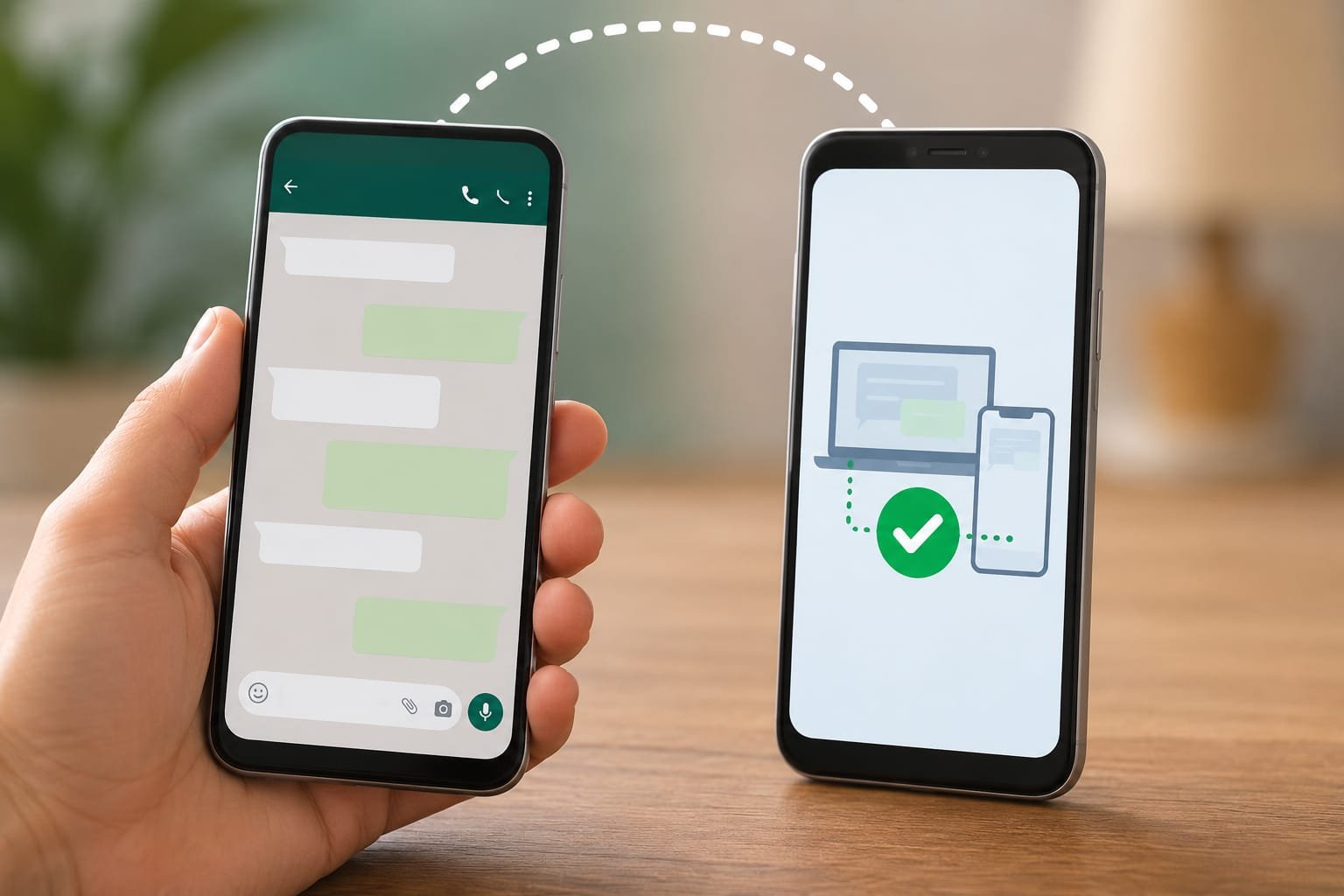

WhatsApp has become one of the world s most popular messaging apps, and many people want to access the same account on more than one device. Whether you have a work phone, a personal phone, or simply want a backup device, WhatsApp now makes it possible to securely link your account to another phone using its Companion Mode feature.
In this complete guide, you’ll learn how to link WhatsApp to another phone, what you need before getting started, common issues you might face, and practical tips to keep your account secure.
What Does It Mean to Link WhatsApp to Another Phone?
Linking WhatsApp to another phone allows you to use the same WhatsApp account on multiple devices without moving your account or logging out of your primary phone.
Once linked:
- Send and receive messages on both phones.
- Access your chat history after synchronization.
- Continue using WhatsApp even if your main phone is temporarily offline (for a limited period).
- Keep conversations synchronized across linked devices.
This feature is especially useful for people who regularly switch between devices.
Requirements Before Linking WhatsApp
Before you begin, make sure you have:
- The latest version of WhatsApp installed on both phones.
- Your primary phone already logged into WhatsApp.
- A stable internet connection.
- Access to the QR code displayed on the second phone.
Updating WhatsApp before starting helps prevent compatibility issues.
How to Link WhatsApp to Another Phone
Follow these simple steps.
Step 1: Open WhatsApp on Your Second Phone
Install WhatsApp from your phone’s official app store if it isn’t already installed.
Instead of entering your phone number, choose the option to Link as Companion Device (or the equivalent option available on your version).
A QR code will appear on the screen.
Step 2: Open WhatsApp on Your Primary Phone
On your main phone:
- Open WhatsApp.
- Tap the three-dot menu (Android) or Settings (iPhone).
- Select Linked Devices.
- Tap Link a Device.
WhatsApp will open the QR scanner.
Step 3: Scan the QR Code
Point your primary phone’s camera at the QR code displayed on the second phone.
Within a few moments:
- Your devices will connect.
- Chats will begin syncing.
- You can start using WhatsApp on both phones.
The initial synchronization may take a few minutes depending on the size of your chat history.
Benefits of Linking WhatsApp to Another Phone
Using WhatsApp on multiple phones offers several advantages.
Better Productivity
Manage conversations from different devices without constantly switching phones.
Easy Backup Device
If your main phone runs out of battery or is temporarily unavailable, you can continue messaging from the linked phone.
Secure Encryption
WhatsApp uses end-to-end encryption, meaning your messages remain protected across linked devices.
Convenient for Work and Personal Use
Many professionals carry two phones. Linking WhatsApp lets them stay connected without transferring accounts repeatedly.
Common Problems and How to Fix Them
QR Code Won’t Scan
Possible solutions:
- Clean the camera lens.
- Increase screen brightness.
- Update WhatsApp on both phones.
- Try again with a stable internet connection.
Chats Are Not Syncing
If messages aren’t appearing:
- Wait a few minutes.
- Connect both devices to Wi-Fi.
- Restart WhatsApp.
- Check for app updates.
Linked Device Disconnects
Sometimes WhatsApp may unlink a device due to security reasons or prolonged inactivity.
Simply repeat the linking process if necessary.
Security Tips
To keep your WhatsApp account secure:
- Never share your QR code with strangers.
- Enable Two-Step Verification.
- Regularly review your linked devices.
- Remove any device you no longer use.
- Keep WhatsApp updated to the latest version.
These simple practices help protect your account from unauthorized access.
Frequently Asked Questions
Can I use the same WhatsApp account on two phones?
Yes. WhatsApp supports linking the same account to another phone using Companion Mode.
Will my chats appear on the second phone?
Yes. After linking, your chats synchronize automatically. Depending on your chat history, the process may take some time.
Can I unlink a device later?
Absolutely. Open Linked Devices on your primary phone and remove any device whenever you want.
Is linking WhatsApp safe?
Yes. WhatsApp protects linked devices with end-to-end encryption and secure authentication. As long as you only link trusted devices and keep your account protected with Two-Step Verification, your conversations remain secure.
Final Thoughts
Linking WhatsApp to another phone is one of the easiest ways to stay connected across multiple devices. Whether you need a second phone for work, travel, or convenience, WhatsApp’s Companion Mode provides a secure and reliable solution without requiring you to transfer your account.
By following the steps in this guide, you can set up a linked device in just a few minutes. Remember to keep both devices updated, use strong security settings, and regularly review your linked devices to ensure your account remains safe. With these best practices, you’ll enjoy seamless messaging wherever you are.